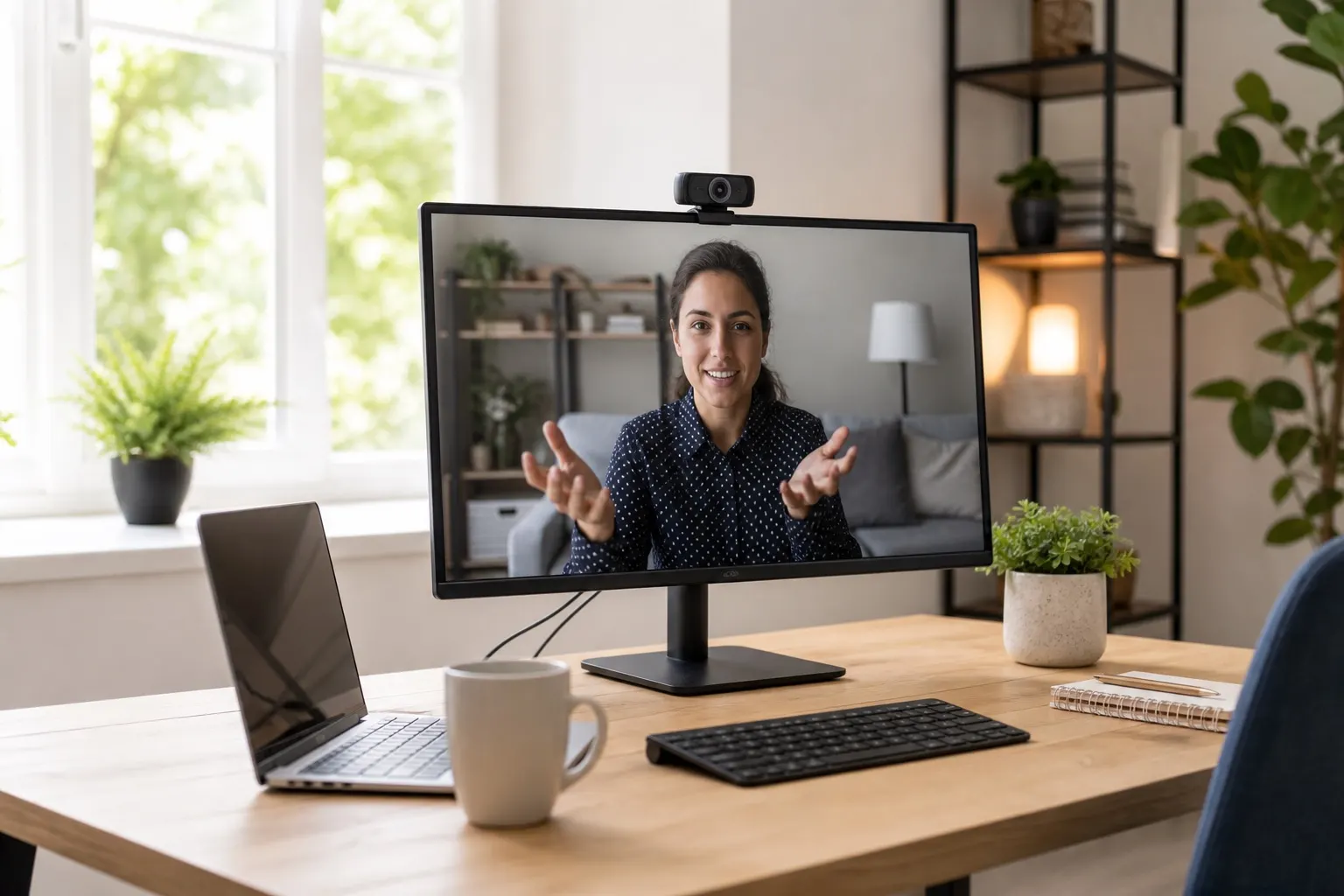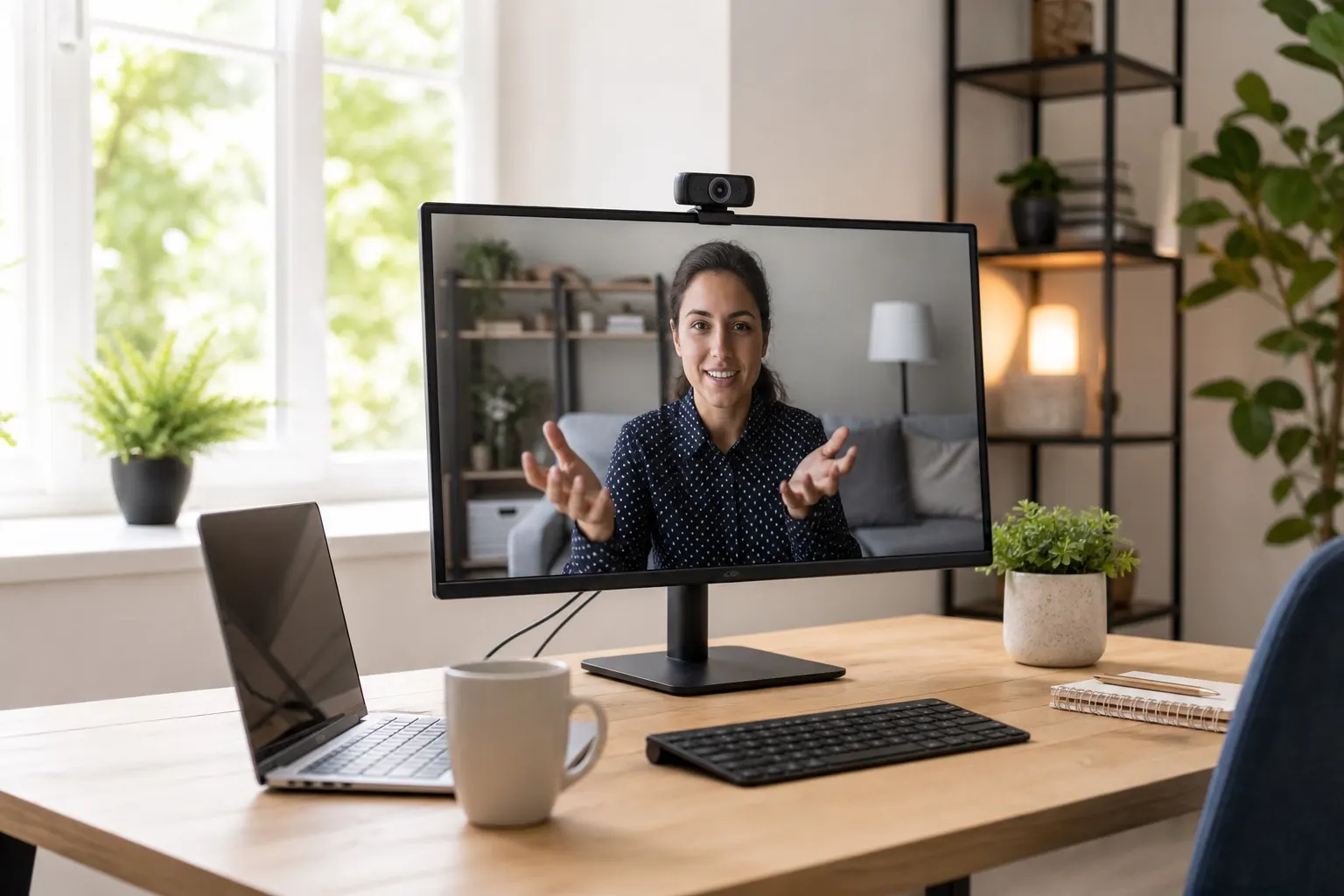
In the world of remote work, your video presence is your first impression. But you don't need to spend hundreds of dollars on a high-end setup to look professional. With a few strategic tweaks, you can elevate your video quality significantly, even with a budget webcam under $100.
TL;DR: To look professional on a budget webcam, focus on three key areas: abundant, soft lighting from the front; clear, crisp audio from a dedicated microphone; and a clean, non-distracting background. These three elements have a much bigger impact than camera resolution alone.Master Your Lighting: The Biggest Bang for Your Buck
Poor lighting is the number one culprit behind grainy, unprofessional video. Your webcam's sensor, especially on a budget model, needs a lot of light to produce a clean image. The goal is to illuminate your face evenly and from the front, eliminating harsh shadows.
The Power of a Good Light Source
You don't need a professional studio. Start by facing a window to take advantage of natural daylight. If your desk faces a wall, or you take calls at night, a simple light source is your best investment. A small, adjustable LED ring light can work wonders.
- Positioning is Key: Place your primary light source in front of you, slightly above your eyeline. This mimics the flattering effect of natural light and reduces shadows under your eyes.
- Avoid Backlighting: Never have a bright window or lamp directly behind you. This forces your camera to expose for the bright light, turning you into a dark silhouette.
- Affordable Option: A simple LED Ring Light clips onto your monitor and provides soft, even illumination for under $30.
For a deeper dive into lighting principles, check out this excellent guide on three-point lighting from MasterClass. It’s a technique from cinematography that can be simplified for any video call.
Upgrade Your Audio: How You Sound Matters
Grainy video is forgivable, but poor audio is distracting and unprofessional. Your laptop's built-in microphone is often the weakest link, picking up echo, keyboard clicks, and background noise.
A dedicated USB microphone is a simple, plug-and-play solution that makes a world of difference. You don't need a podcasting-level setup; a budget-friendly cardioid mic will focus on your voice and reject ambient sounds.
- Clearer Voice: It captures a richer, clearer sound, making you easier to understand.
- Reduces Echo: It minimizes the "roomy" echo that built-in mics often produce.
- Top Budget Pick: The Fifine K669B is a highly-rated, affordable USB microphone that provides exceptional quality for its price.
Control Your Background: Keep it Clean and Simple
A cluttered or distracting background can undermine your professional image. The best background is one that nobody notices.
- Keep it Tidy: Your background should be clean and organized. A simple bookshelf, a plant, or a piece of art works well. Remove any personal clutter.
- Virtual Backgrounds (Use Sparingly): While tempting, virtual backgrounds can look glitchy, especially with budget webcams. If you use one, opt for a subtle, professional office image rather than a beach scene. A simple, clean physical background is always a safer bet.
- Camera Angle: Position your webcam at eye level. Looking down at the camera is unflattering, and looking up can be distracting. Use a stack of books or a laptop stand to get the right height.
FAQ: Budget Webcam Professionalism
Q1: Is a 4K webcam worth the extra money for video calls?
For most video conferencing platforms like Zoom, Teams, and Google Meet, a 1080p webcam is more than sufficient. These platforms compress video streams anyway, so you won't see the full benefit of 4K resolution. Focus on lighting and audio before upgrading to 4K.
Q2: How do I stop my webcam video from looking so grainy?
Graininess (or "noise") is almost always a result of insufficient light. Before blaming the camera, add more light. Open a curtain, turn on a lamp, or get a small ring light. A well-lit scene will make even a budget 720p webcam look surprisingly clear.
Q3: Should I use my phone as a webcam instead?
Using your phone can be a great option! Modern smartphone cameras are incredibly powerful. Apps like Camo or EpocCam let you use your phone as a wireless webcam. This can be a fantastic, free way to get a high-quality picture, but make sure you have a small tripod or stand to hold it steady at eye level.
By focusing on these core principles of lighting, audio, and background, you can present a polished and professional image on every call, proving that it's not about the price of the gear, but how you use it.