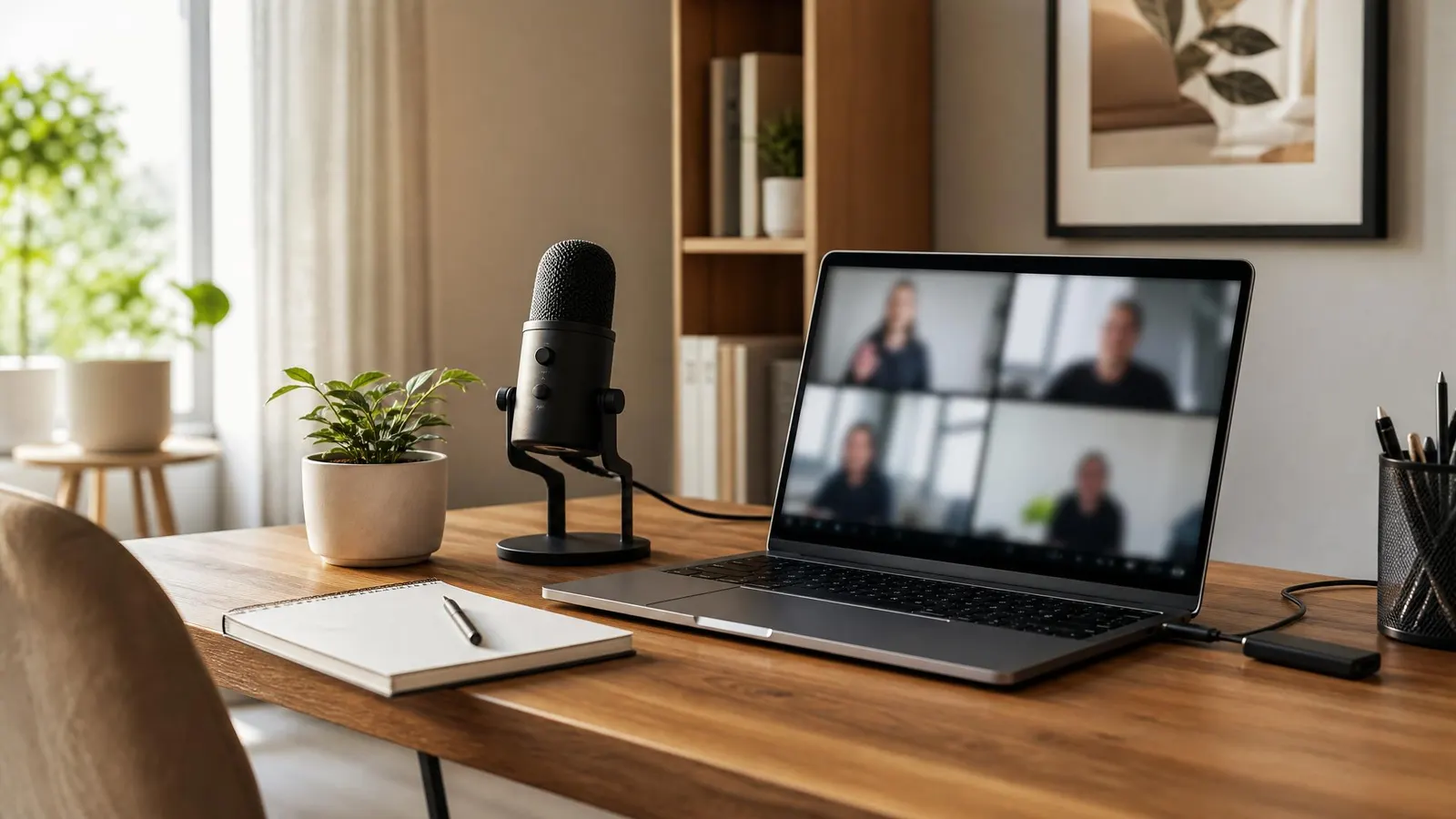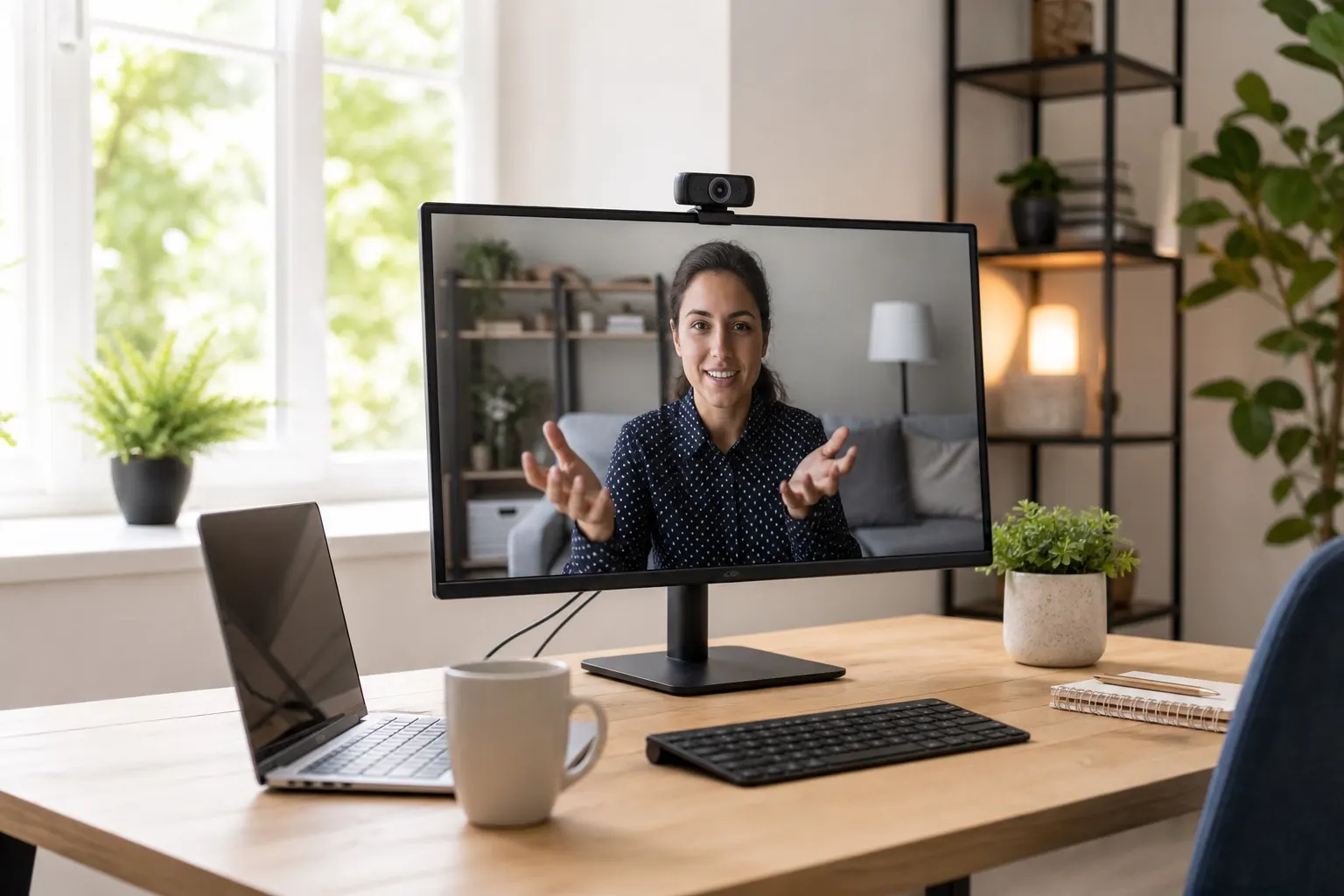
Looking polished on video calls doesn't require a $300 camera. The right webcam under $100 can make you look professional on Zoom, Google Meet, and Teams — without touching your laptop's embarrassing built-in lens.
This post contains affiliate links. We may earn a small commission at no extra cost to you. TL;DR: The Logitech C920x ($70) is the gold-standard webcam under $100 for most remote workers. For low-light rooms, consider the Razer Kiyo ($100). Both deliver 1080p clarity that laptop cameras simply can't match.Why Your Built-In Webcam Isn't Good Enough
Laptop webcams are an afterthought. They're usually stuck at 720p, jammed into a terrible viewing angle, and starved for light. The result: you look grainy, washed out, and oddly positioned at the bottom of everyone's screen.
A dedicated external webcam sits at eye level, captures sharper detail, and handles low-light environments far better. Your colleagues will notice — and so will you.
For remote workers who spend hours per day on calls, this is one of the highest-value upgrades you can make. It's arguably more impactful than a noise-canceling headset, because people see you before they hear you.
What 1080p Actually Looks Like vs. 720p
At 1080p and 30fps, a good webcam captures enough detail that your face looks sharp, your background is clear, and lighting variations don't blow out your image. At 720p (standard laptop cam), you look like you're Skyping in 2012. For client calls and interviews, the difference is real.
Top Webcams Under $100 in 2026
These picks have been tested extensively across different room setups, lighting conditions, and call platforms.
Logitech C920x — The Reliable Workhorse
The Logitech C920x is the remote work standard for a reason. It shoots 1080p at 30fps, has a dual-mic setup that picks up your voice cleanly without an external microphone, and works plug-and-play on Windows and Mac. No drivers, no fuss.
It clips securely to any monitor and includes a privacy shutter — a small but genuinely useful feature when you're done for the day. At around $70, it's the best value webcam for most people.
Logitech C920x WebcamRazer Kiyo — Best for Low-Light Rooms
If your home office faces away from natural light or you work evenings, the Razer Kiyo is built for you. It has a built-in ring light that wraps the lens, providing soft fill lighting directly on your face without any extra gear.
It shoots 1080p at 30fps and 720p at 60fps. The ring light brightness is adjustable via dial. At ~$100, it sits at the top of this price range but earns it in darker setups.
Razer Kiyo Webcam with Ring LightAnker PowerConf C300 — Best Autofocus
The Anker PowerConf C300 punches above its weight at around $60. It features AI-powered framing that keeps you centered even if you move around, plus solid autofocus that makes it look like you know what you're doing. It's a great pick if you tend to gesture or move while you talk.
Anker PowerConf C300 WebcamWhat to Look For When Buying
Not all webcam specs are equal. Focus on these:
- Resolution: 1080p minimum. 4K webcams under $100 exist but usually sacrifice frame rate or low-light performance.
- Frame rate: 30fps is fine for calls. 60fps matters more for recording.
- Field of view (FOV): 70–90° is standard. Wider is better if you want background visible; narrower keeps focus on your face.
- Autofocus: Fixed-focus webcams are cheaper but blurry if you lean in. Autofocus handles natural movement better.
- Microphone: Built-in mics are convenient backups, but pair with a dedicated mic or headset for best call audio.
According to Wirecutter/NYT's webcam testing methodology, real-world lighting conditions matter more than spec sheets — test your camera in your actual workspace before committing.
Setting Up Your Webcam for Better-Looking Calls
A great webcam only helps if your setup supports it. A few quick wins:
- Eye-level mounting: Clip to your monitor or use a tripod arm so the camera is at eye level, not below your chin.
- Face a window: Natural front-facing light is free and flattering. Don't sit with a window behind you.
- Blur or replace your background: Most call apps support virtual backgrounds. A clean, blurred background keeps focus on you.
- Check your home office setup overall: Webcam, lighting, and backdrop work together.
Lighting Tip That Changes Everything
A $20 ring light on your desk can do more for your video quality than a $200 camera upgrade. If you're in a dark room, add a small LED panel or ring light facing you before upgrading your webcam.
FAQ
What is the best webcam under $100 for Zoom calls?
The Logitech C920x is the best webcam under $100 for Zoom and most video call platforms. It delivers reliable 1080p video, has a solid built-in microphone, and works plug-and-play on Mac and Windows.
Do I need a 4K webcam for remote work?
Most remote workers don't need 4K. Video call platforms compress video anyway, and 1080p at 30fps looks excellent on any standard business call. 4K is worth considering only if you're recording high-quality video content.
Is a built-in webcam good enough for professional calls?
In most cases, no. Built-in laptop webcams are typically 720p, poorly positioned, and weak in anything but bright conditions. A $60–$80 external webcam is a meaningful upgrade that signals professionalism on client calls and interviews.