If your desk has become a nest of laptop chargers, monitor cables, USB hubs, webcam cords, and power bricks, start small. One cable tray, a pack of reusable ties, and a few labels can change the whole workspace in under an hour.
Start With a Cable Audit
Before buying organizers, unplug everything you can safely disconnect and sort the pile. Most messy desks have at least three unnecessary cables: an old phone charger, a duplicate USB cable, and a mystery adapter that nobody has used in months.
Group the cables into four categories:
- Daily essentials: laptop charger, monitor cable, keyboard or mouse receiver, webcam, microphone, dock, lamp.
- Occasional gear: card reader, backup drive, presentation clicker, spare headset.
- Charging only: phone, tablet, smartwatch, earbuds, power bank.
- Remove or store: duplicates, damaged cords, old device cables, travel-only adapters.
This matters because cable management is much easier when every cord has a job. If something only gets used once a month, keep it in a small pouch or drawer instead of letting it live behind your monitor.
For a broader desk reset, pair this with our guide to desk organization for remote workers. The cleanest setups usually combine cable routing with fewer objects on the work surface.
Build a Simple Under-Desk System
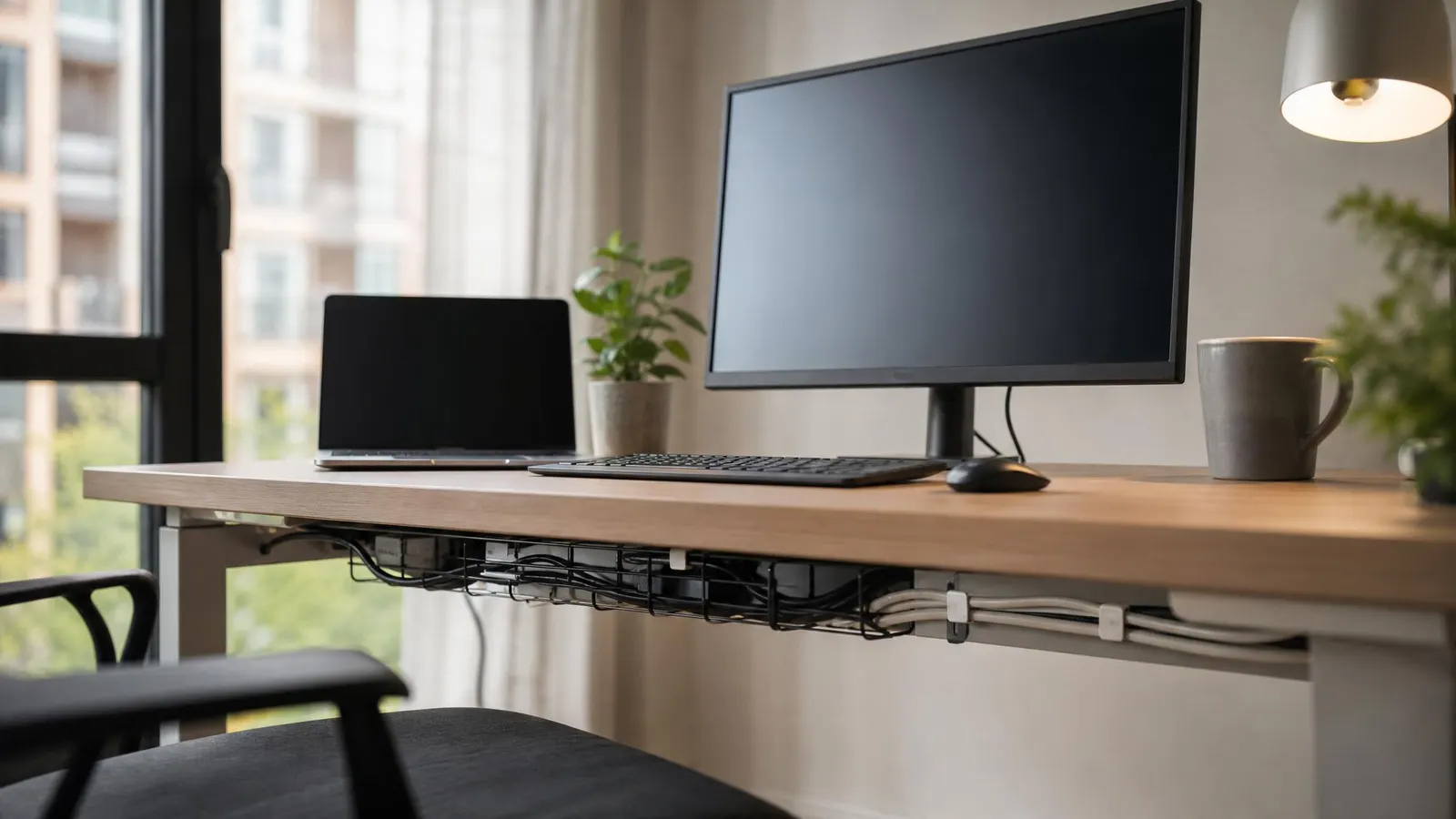
The biggest improvement is getting power off the floor. A desk cable management tray mounted under the back edge of the desk can hold the power strip, laptop power brick, monitor adapter, and extra cable length. That keeps cords from dangling where feet, chair wheels, pets, or vacuum cleaners can pull them loose.
Use a surge-protected under-desk power strip if your current strip is bulky or constantly sliding around. Make sure it has enough spacing for power bricks, because remote-work gear often uses awkward adapters that block neighboring outlets.
The basic layout is straightforward:
- Mount the tray or basket under the back side of the desk.
- Place the power strip inside the tray, not on the floor.
- Run monitor, dock, and charger cables down the back of the desk.
- Bundle extra length inside the tray with reusable ties.
- Leave a little slack for laptop movement and standing-desk height changes.
Avoid wrapping power cords into tight coils. Loose loops are easier to adjust and less likely to put stress on connectors.
Route Cords for Real Work Habits
Good cable management should match how you actually work. If you dock and undock a laptop every day, do not bury the USB-C cable behind six ties. If you move a microphone between desk and shelf, give that cable a clear route and enough slack.
Start with fixed items: monitor, speakers, lamp, webcam, and dock. These can be routed neatly along the back edge of the desk with adhesive clips or cable channels. Then handle flexible items: laptop charging, phone charging, headset charging, and external drives.
Reusable hook-and-loop cable ties are better than single-use zip ties for a home office because remote setups change. You might add a monitor arm, replace a webcam, test a new microphone, or move your desk. Reusable ties let you adjust without cutting plastic every time.
Label the cables you unplug most: monitor, dock, camera, microphone, hard drive, and router. A cheap label maker is nice, but masking tape and a marker work. Labels save time when your video call starts in four minutes and the wrong USB-C cable is connected.
The Occupational Safety and Health Administration's computer workstation guidance is worth reviewing if you are also adjusting desk height, monitor position, and reach zones. Cable cleanup should support a comfortable setup, not force awkward posture.
Keep Chargers Useful, Not Messy
Charging clutter is usually the final layer. Phones, tablets, headphones, keyboards, mice, and watches all want desk space. Instead of running separate cords across the surface, create one charging zone.
A small charging station, drawer organizer, or side shelf works well. Use short cables where possible and keep them tied to the station so they do not migrate across the desk. If you charge several devices, a compact USB-C charging hub can replace multiple wall bricks.
Keep one spare cable accessible for guests, travel gear, or emergency charging. Store the rest. Too many "just in case" cables on the desk make the whole system harder to maintain.
Once the setup is clean, take a photo of the back of the desk. That gives you a reference when you move apartments, change desks, or troubleshoot later. It sounds fussy, but it is faster than guessing where every cord used to go.
FAQ
What is the easiest cable management fix for a home office?
Mount the power strip under the desk or place it in an under-desk cable tray. That single change removes floor clutter, reduces accidental unplugging, and gives excess cable length somewhere to live.
Are cable trays better than cable sleeves?
Cable trays are better for power strips, bricks, and excess length. Cable sleeves are useful when several cords need to travel together from the desk to the wall. Many remote workers use both: tray under the desk, sleeve down one rear leg.
How often should I redo my desk cables?
Review them whenever you add or remove major gear, and do a quick cleanup every three to six months. If you regularly switch laptops, monitors, microphones, or docks, use reusable ties and labels so changes stay painless.
Bottom Line
Cable management for a home office is a practical productivity upgrade. You get a cleaner desk, fewer accidental unplugging problems, easier cleaning, and a setup that looks better on video calls. Start with the cables you use every day, get power off the floor, label the important cords, and leave enough flexibility for the way you actually work.