Your keyboard is probably the most-touched piece of gear in your home office and the most ignored. If you type six or more hours a day, a standard flat laptop or desktop keyboard can push your wrists outward, pull your mouse too far from center, and make a good chair feel worse than it should.
If you are building the whole setup from scratch, start with the best ergonomic products for remote workers on tight budgets. That guide helps you decide whether your next dollar should go toward a chair, laptop stand, foot rest, keyboard, or lighting before you buy a specialized keyboard.
Why Ergonomic Keyboards Actually Matter
The Wrist Science Behind It
Standard keyboards can force your wrists into ulnar deviation: hands angled outward toward the pinkies while your forearms stay parallel. Do that for thousands of keystrokes a day and you may feel wrist fatigue, forearm tension, or shoulder compensation by the end of the week.
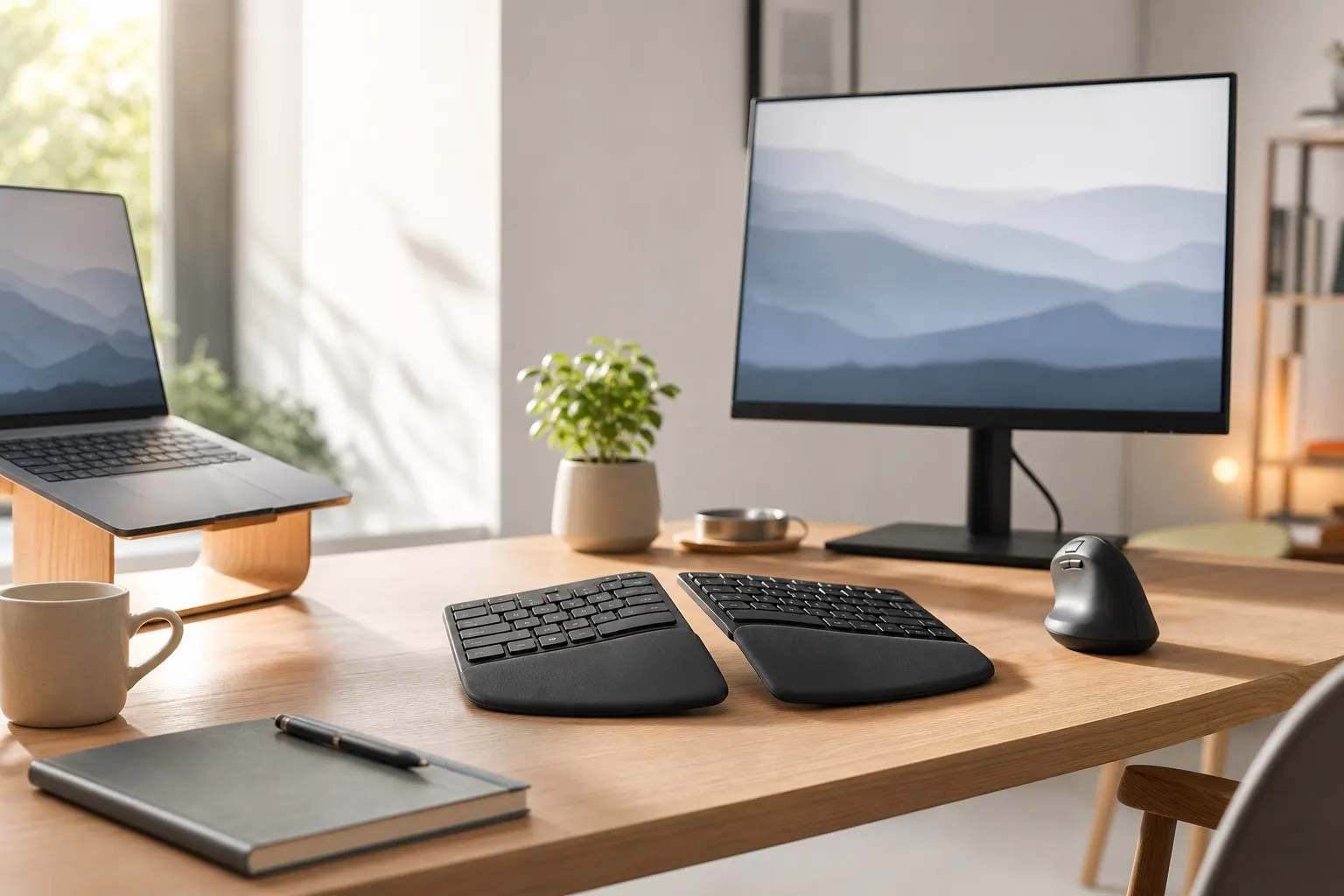
Ergonomic keyboards address this by changing the geometry: split designs let each hand rest in a natural position, tented keyboards tilt the middle upward so your forearms pronate less, and negative-tilt designs angle the keys away from you to reduce wrist extension.
According to research from Cornell University Ergonomics Lab, keyboard tilt and wrist position are among the top modifiable factors in office-related musculoskeletal discomfort.
Ergonomic Keyboard Comparison for Remote Workers
| Keyboard path | Best for | Watch out for | Budget priority |
|---|---|---|---|
| Curved split keyboard | Most remote workers moving from a standard keyboard | Still fixed-width, so shoulder position may not change enough | Best first upgrade if you want comfort without retraining |
| True split keyboard | Heavy typists, broad shoulders, and people who need wider hand placement | Slower first week and more cable/desk clutter | Worth it after chair and monitor height are solved |
| Compact TKL or 65% keyboard | Small desks and workers whose mouse sits too far right | Not ergonomic by itself; layout may lose keys you use | Good budget move if shoulder reach is the main problem |
| Laptop stand plus external keyboard | Laptop-first remote workers | Requires a separate mouse and enough desk depth | Essential if your laptop is raised to eye level |
Disclosure: This guide includes Amazon affiliate links. If you buy through those links, we may earn a commission at no extra cost to you.
Types of Ergonomic Keyboards Explained
Not all "ergonomic" keyboards are built the same. Here's what you're actually choosing between:
Curved Unibody Keyboards
These look like a standard keyboard but have a gentle arc across the key layout. They're the easiest to adapt to and a great starting point. The Logitech ERGO K860 is the flagship example: wireless, cushioned palm rest, compatible with Windows and Mac, and usually priced like a midrange home-office upgrade.
Logitech ERGO K860 Ergonomic KeyboardSplit Keyboards
Split keyboards physically separate the left and right halves so you can position each hand shoulder-width apart. This eliminates ulnar deviation entirely. The Kinesis Freestyle2 is the most popular wired option; the MoErgo Glove80 is a more advanced wireless split with tenting built in.
For remote workers who type heavily or already have wrist discomfort, a split keyboard is the bigger upgrade. The learning curve is 1–3 weeks to reach your previous typing speed.
Kinesis Freestyle2 Split KeyboardCompact 65% and TKL Keyboards
Compact layouts aren't inherently ergonomic, but removing the numpad lets you keep your mouse closer to center, reducing shoulder reach. If you pair a compact keyboard with proper desk height and a separate mouse, you can get a meaningful ergonomic improvement without changing your typing habits much.
Compact Mechanical Keyboards for Home OfficeTop Picks by Use Case
Best Overall: Logitech ERGO K860
The K860 hits the sweet spot between ergonomic improvement and zero learning curve. The split-curved layout guides your hands into a more natural angle, the built-in palm rest is genuinely comfortable, and the wireless connection handles both Windows and Mac.
It's not a true split keyboard — the two halves are still connected — but for most remote workers making their first ergonomic upgrade, it's the right call. Battery lasts up to two years.
Best for Serious Wrist Issues: Kinesis Freestyle2
If you're already dealing with wrist strain or have been advised to reduce keyboard stress, the Kinesis Freestyle2 is the most accessible true-split option. The two halves connect via a ribbon cable, so you can spread them as wide as you need. The base model doesn't tent, but you can add the VIP3 accessory for tenting up to 15°.
It's available in both PC and Mac versions. Typing feel is slightly mushy compared to mechanical options, but comfort wins here.
Best Mechanical Ergonomic: Keychron K15 Pro
For those who want mechanical switches alongside ergonomic design, Keychron's K15 Pro offers a low-profile split layout with hot-swappable switches and RGB. It connects wirelessly via Bluetooth or 2.4GHz dongle and works across Mac, Windows, and iPad.
If you care about typing feel and are willing to spend a week adapting to the split layout, this is the best of both worlds.
Setting Up Your Keyboard for Maximum Comfort
A great ergonomic keyboard is only as good as its position. A few setup rules:
- Desk height: Your elbows should be at roughly 90° when your hands rest on the keyboard. If your desk is too high, your shoulders rise. If too low, your wrists bend upward.
- Negative tilt: Most keyboard stands angle the back upward. Flip that: angle the back downward (negative tilt) so your wrists stay flat or slightly extended away from you.
- Wrist rests: Use them for resting between bursts of typing, not while actively typing. Resting on a pad mid-keystroke increases carpal tunnel pressure.
- Mouse position: Keep your mouse as close to your keyboard as possible. This is where a compact keyboard layout (no numpad) pays dividends.
Check out the home office setup guide for under $200 for how keyboard positioning fits into a full ergonomic workstation without overspending.
If you are building the whole desk from scratch, the tight-budget ergonomic products guide shows where an external keyboard fits after the chair, laptop stand, and foot support are handled.
If your chair is the weak point, compare options in the budget ergonomic chair guide before buying a premium keyboard. If your feet dangle after you raise the chair for better typing height, fix that with a work from home foot rest so the keyboard position does not create a lower-body problem.
One Quick Win: Raise Your Monitor
If you fix your keyboard position but your monitor is still too low, you'll compensate by hunching forward — negating the keyboard improvements. Get your monitor at eye level first, then dial in your keyboard height.
Laptop workers should be especially careful here. A laptop stand for remote work only works ergonomically when you pair it with an external keyboard and mouse; typing all day on an elevated laptop usually trades neck strain for shoulder and wrist strain.
FAQ
What is the best ergonomic keyboard for remote work in 2026?
The Logitech ERGO K860 is the best ergonomic keyboard for most remote workers. It's wireless, easy to adapt to, and costs around $120. For those with existing wrist pain or who type heavily, a true split keyboard like the Kinesis Freestyle2 offers more dramatic relief.
Do ergonomic keyboards actually help with wrist pain?
Yes, when combined with proper desk setup. Ergonomic keyboards reduce ulnar deviation and wrist extension, which are two key contributors to typing-related wrist strain. They work best alongside correct desk height, monitor position, and regular breaks.
How long does it take to get used to a split ergonomic keyboard?
Most people reach their previous typing speed within 1–3 weeks of daily use on a split ergonomic keyboard. The first few days feel slow, but muscle memory rebuilds quickly. Starting on a curved unibody like the K860 first can ease the transition.
Should I buy an ergonomic keyboard before a better chair?
Usually no. If your chair height, foot support, or laptop screen height is wrong, a better keyboard can only do so much. Use the tight-budget ergonomic products guide to set the shopping order, then add the keyboard when your desk height and screen height are stable.
Bottom Line
For most remote workers, the best ergonomic keyboard upgrade is the one that fixes a specific setup problem. Choose a curved split keyboard if you want easy comfort, a true split keyboard if you need more hand-position freedom, or a compact keyboard if the mouse reach is what bothers your shoulder.
Before spending premium money, make sure the rest of the ergonomic chain is not fighting you. Pair the keyboard with the right budget chair, foot rest, and laptop stand so the whole desk works together. If you already have good posture seated and want to add movement to your day, a standing desk converter lets you raise your keyboard and monitor together without replacing your existing desk.