The best monitor for remote work in 2026 is a 27-inch 4K USB-C display if you can spend around $300-$500. It gives you sharp text, enough room for two documents side by side, and a single-cable connection that can charge many laptops. If that is too expensive, a 27-inch QHD IPS monitor is the best budget pick. If you travel, start with a portable monitor instead.
This guide is for remote workers choosing one practical external display for a home office, small apartment, coworking setup, or hybrid desk. If you already know you want two screens, read the dual monitor setup guide after this.
Affiliate disclosure: This guide includes affiliate links. If you buy through them, we may earn a commission at no extra cost to you.Quick Picks
| Remote work need | Best monitor type | Why it works |
|---|---|---|
| Best overall | 27-inch 4K USB-C monitor | Sharp text, comfortable size, one-cable laptop docking |
| Best budget | 27-inch QHD IPS monitor | Big upgrade from a laptop without 4K pricing |
| Small desk | 24-inch 1080p monitor | Cheaper, compact, easy to fit beside a laptop stand |
| Heavy multitasking | 34-inch ultrawide USB-C monitor | Replaces two screens for writing, coding, research, or spreadsheets |
| Travel or hybrid work | portable USB-C monitor | Gives you a second screen in hotels, cafes, and shared spaces |
For most people, buy the 27-inch 4K USB-C category if your laptop supports USB-C display output and charging. Buy QHD if you want the most value. Buy ultrawide only if your desk is deep enough and your work benefits from wide side-by-side windows.
Why an External Monitor Changes Everything
Adding a real monitor is not just about more pixels. A proper screen gives you:
- Better ergonomics: eye-level screens mean less neck and shoulder strain.
- More usable workspace: keep a video call, document, spreadsheet, or reference window visible without constant tab switching.
- Sharper text: higher resolution makes long writing, coding, and email sessions easier on your eyes.
- Cleaner docking: a USB-C monitor can reduce the number of cables, adapters, and chargers on your desk.
Even if you only use one screen, upgrading from a laptop display to a dedicated 27-inch monitor makes a noticeable difference in how you feel at the end of the day.
What Specs Actually Matter for Remote Work
You don't need a gaming monitor. Here's what to prioritize:
Resolution
For a 27-inch display, 4K is the sweet spot in 2026. Text is sharp, and you can comfortably fit two documents side by side. If you are on a tighter budget, QHD is still excellent and noticeably better than 1080p at this size.
Avoid 27-inch 1080p as your main remote work monitor unless price is the only factor. It works, but text looks less crisp at normal desk distance.
Panel Type
IPS panels offer the best color accuracy and viewing angles. Most modern monitors default to IPS, but double-check — you don't want a TN panel in 2026.
USB-C Connectivity
If your laptop supports it, a USB-C monitor that delivers power, video, and data over a single cable is a game-changer. One cable to plug in, one cable to unplug. That's it. No dongles, no dock drama.
Size
27 inches is the productivity standard. If you have desk space, a 34-inch ultrawide can replace a dual-monitor setup entirely. Anything smaller than 24 inches isn't worth the investment for full-time remote work.
Ergonomics
Do not judge a monitor only by the panel. Check whether the stand has height adjustment, whether the screen supports VESA mounting, and whether the ports face in a direction you can actually reach. If the stock stand is weak, budget for a monitor arm.
Top Picks for 2026
Best Overall: 27-Inch 4K USB-C Monitor
For most remote workers, a 27-inch 4K USB-C monitor hits the best balance of price, features, and desk space. Models from Dell, LG, ASUS, and BenQ in this category often include built-in USB hubs, adjustable stands, and 60W or higher power delivery. Plug in one cable and you are working.
Choose this if you write, code, analyze spreadsheets, review documents, or spend long days in browser-based tools. It is the safest default for a permanent home office.
Best Budget: 27-Inch QHD Display
Not ready to go 4K? A 27-inch QHD monitor is a massive upgrade from any laptop screen. You lose some sharpness compared with 4K, but at normal viewing distances, QHD on a 27-inch panel still looks good. These are also excellent as a second monitor if you already have a primary display.
Choose this if you are building a home office setup under $500 and need budget left for a chair, webcam, light, or microphone.
Best Small-Desk Pick: 24-Inch 1080p Monitor
A 24-inch 1080p monitor is the practical choice for narrow desks, guest rooms, and apartment setups. It is not as sharp as QHD or 4K, but the smaller panel keeps text more tolerable than 1080p stretched across 27 inches.
Choose this if your desk is shallow, your budget is under $150, or you mainly need email, documents, video calls, and browser tabs.
Best for Multitaskers: 34-Inch Ultrawide
If your workflow involves comparing documents, coding with a preview pane, or keeping Slack visible while you work, a 34-inch ultrawide curved monitor eliminates the bezels and alignment hassles of dual monitors. The 21:9 aspect ratio gives you roughly 1.5 monitors' worth of space in a single seamless display. Prices have dropped significantly — solid options start around $350.
Choose this if you want one wide screen instead of a dual-monitor arm. Skip it if your desk is shallow or if your work is mostly video calls and single-window writing.
Best for Hybrid Work: Portable Monitor
If you split time between home, hotels, cafes, and coworking spaces, a portable USB-C monitor may beat a permanent desktop display. It gives you a second screen without committing to one desk. The tradeoff is smaller size, lower brightness, and a stand that is usually less ergonomic than a full monitor arm.
For specific models and travel tradeoffs, use the portable monitor guide for remote workers.
Don't Forget the Stand
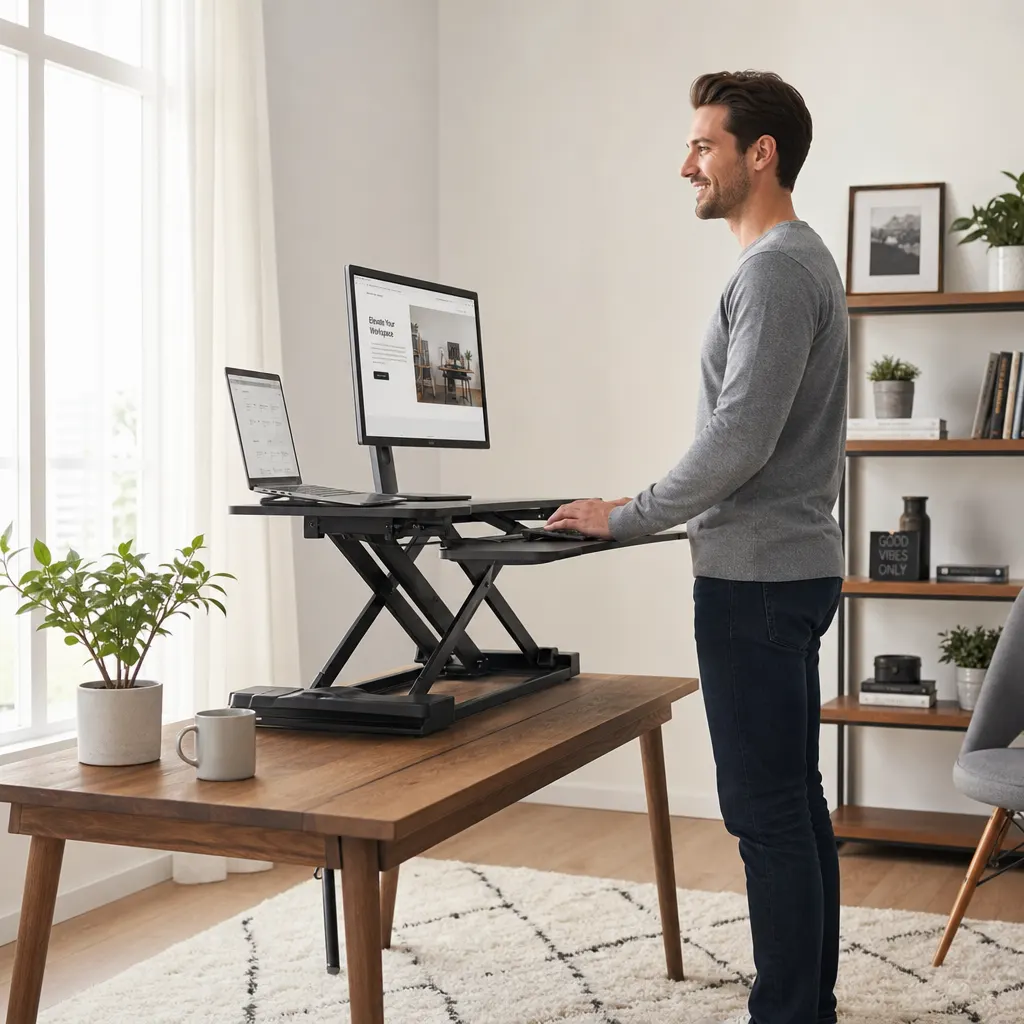
Most budget monitors come with basic tilt-only stands. If you're spending 8+ hours a day at your desk, invest in a proper monitor arm. A good arm lets you adjust height, distance, and angle precisely, frees up desk space, and makes it easy to switch between sitting and standing positions. They run $30–$80 and work with virtually any VESA-compatible monitor.
If you are buying two screens, a single monitor arm is not enough planning. Check the dual monitor setup guide for spacing, docking, and arm choices before you order.
Setup Tips for Maximum Productivity
Once your monitor arrives, a few quick adjustments make a big difference:
- Position the top of the screen at or slightly below eye level. This keeps your neck neutral. A monitor arm or a simple stand riser helps here.
- Keep the screen about an arm's length away. Too close and you'll strain your eyes; too far and you'll lean forward.
- Match your laptop and monitor scaling. If you're running macOS or Windows, set both displays to the same effective scaling so windows don't jump between sizes when you drag them across.
- Use your laptop as the secondary screen. Put your main work on the big monitor and relegate video calls, chat, or reference material to the laptop display.
- Calibrate brightness to your room. A monitor blasting at 100% brightness in a dim room is a recipe for headaches. Most modern displays have ambient light sensors — use them.
Pairing Your Monitor with the Right Tools
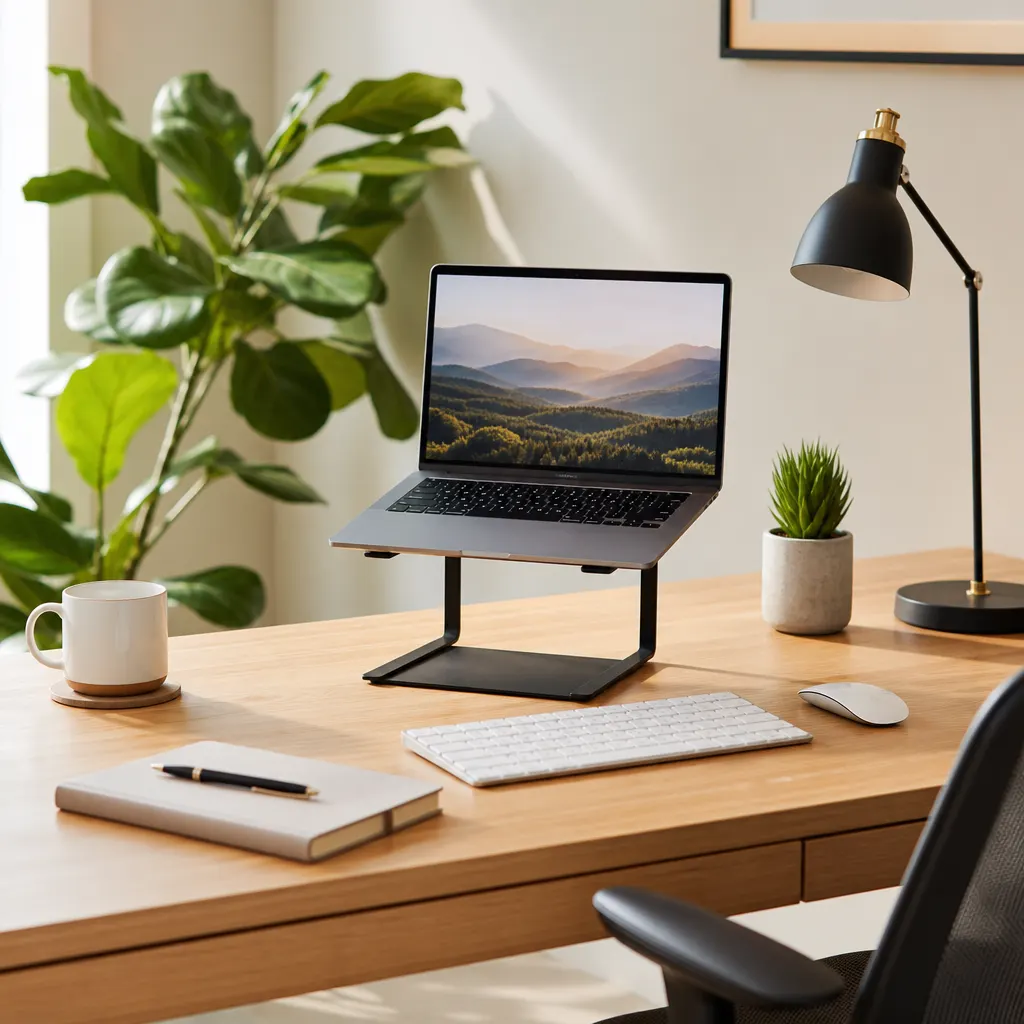
A great display deserves a clean setup around it. Pair your monitor with a laptop stand, external keyboard, mouse, and reliable lighting so you are not raising the screen while leaving your hands in an awkward position. For a full starter path, use the remote work home office starter kit and the cable management guide.
If you work from public networks, also review the remote work cybersecurity essentials before relying on cafe Wi-Fi for client or company work.
FAQ
Is 24 inch or 27 inch better for remote work?
For most remote workers, 27 inches is better because it gives you more room for side-by-side windows. A 24-inch monitor is still a smart choice for small desks, low budgets, or simple email-and-document work.
Is 4K worth it for office work?
4K is worth it if you read and write all day, code, edit documents, review spreadsheets, or keep multiple windows open. If your budget is tight, a 27-inch QHD monitor is the better value pick.
Should I get one ultrawide or two monitors?
Choose one ultrawide if you want a clean desk and a seamless wide workspace. Choose two monitors if you like separating calls, chat, notes, and focus work across distinct screens.
Do I need USB-C for a remote work monitor?
You do not need it, but USB-C is convenient if your laptop supports display output and charging through the same port. It can replace a separate dock for many home office setups.
The Bottom Line
You don't need to spend $1,000 on a monitor to transform your remote work setup. A 27-inch 4K display with USB-C is the best all-around pick, a 27-inch QHD display is the best value pick, and a 24-inch 1080p display is still fine for small desks.
The important thing is making the jump from laptop-only to a proper external display, then setting it at the right height and distance. That is where the real remote-work upgrade happens.